
Groups, Schedules & Rules
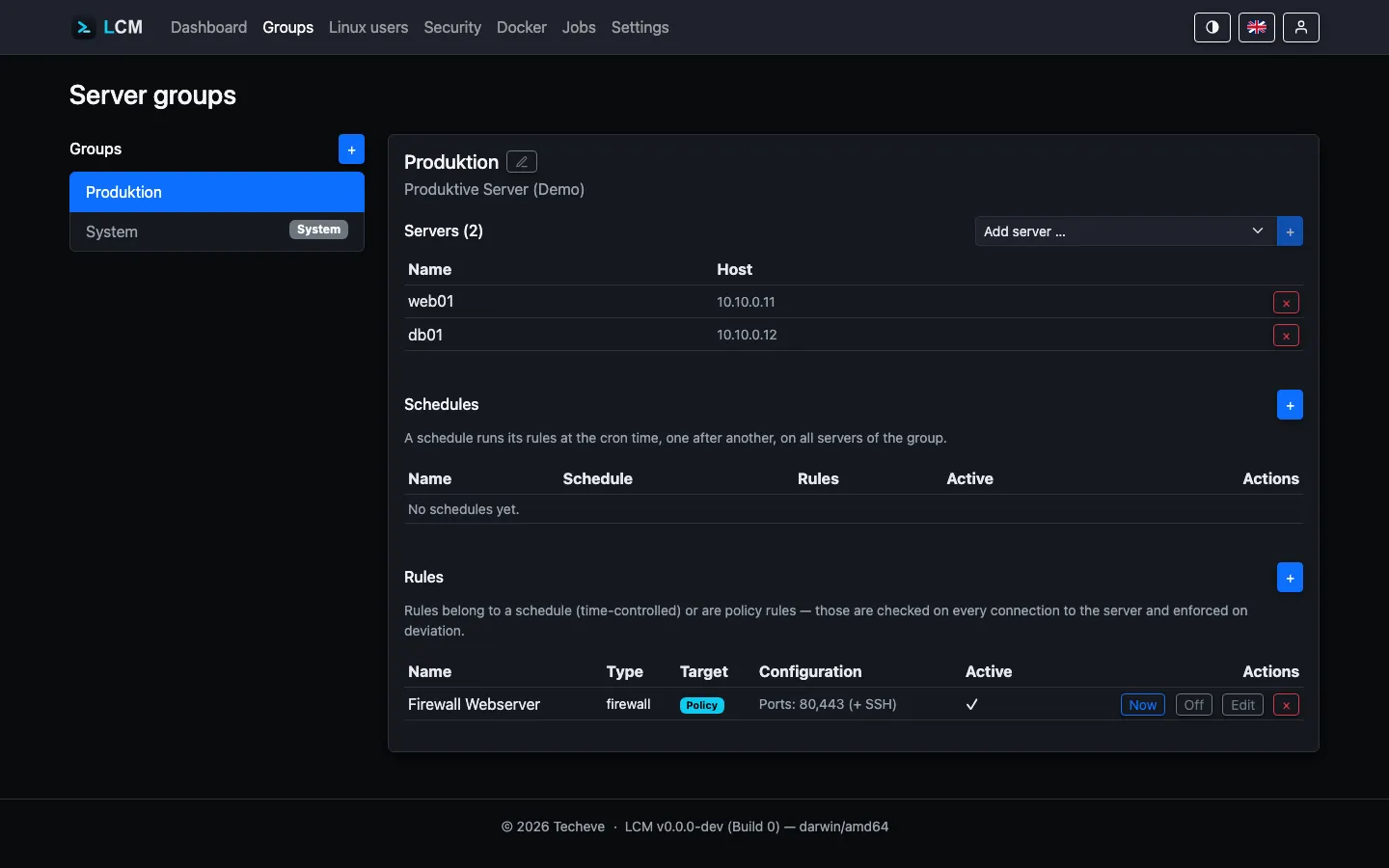
Server groups bundle servers to automate them together. A group has schedules and rules; a schedule runs its rules at cron time, one after another, on all servers in the group.
Two kinds of rules
Section titled “Two kinds of rules”| Kind | When it runs | Examples |
|---|---|---|
| Scheduled rule | at the cron time of its schedule | daily updates, sync, scripts, bind APT cache |
| Baseline rule (enforce) | on every connection (at least on the health ping) | firewall, enforce APT cache - with drift check |
A baseline rule first checks the current state and intervenes only on deviation. Firewall example: if the expected port configuration is already active, nothing happens; if it deviates, it is re-applied. Every actual intervention shows up as an audit entry and in the log - a change to a production system should not live only in another job’s output.
Baseline rules are therefore only available for types that actually carry a target state: firewall, APT cache, set up ACL and keep permission state.
The last two belong to the privilege profiles: “set up ACL” installs missing ACL support so that a profile’s directory permissions take effect on new members of the group at all; “keep permission state” restores hardened directories and applied directory permissions after a package upgrade has reset them. Conversely they cannot be attached to a schedule - they describe a state, not an action at a given time.
A shell command, in turn, carries no target state at all: as a baseline rule it would run unconditionally on every health check. A schedule is the right place for that - there every run appears as its own job.
Priority: when several groups govern the same server
Section titled “Priority: when several groups govern the same server”A server may belong to any number of groups. If two of them carry a baseline rule of the same type, they describe the same target state differently - only one can take effect. The group’s priority decides which one: the lower number wins (read like MX and SRV records).
| Group | Priority | Meaning |
|---|---|---|
| your own groups | 100 (default) | freely choosable from 1 to 9999 |
| system group | 1000 | deliberately the weakest - its rules apply to every server and form the baseline that a more specific group may override |
The superseded rule is not executed, but it is named explicitly in the health check report:
Grundsatz-Regeln: [Basis-Firewall] firewall ok - regel umgesetzt (ports: 22,443) [Web-Firewall] übersprungen - Vorrang liegt bei Gruppe "Basis-Härtung" (10).If both groups share the same priority, the older group wins. That is deterministic, but it is not a decision anyone made - LCM therefore reports such cases in the log at startup and points out the tie in the health report. Set the priority explicitly in that case.
Rules of different types do not contradict each other (firewall and APT cache concern different things) - those all keep running. And scheduled rules are not affected by priority at all: two update runs from two groups are not a conflict, they are two jobs.
Rule types
Section titled “Rule types”- Update / package updates / security - package upgrade via the detected package manager; “named” updates specific individual packages.
- Script - any shell command.
- Custom action - a command list configured under Settings → Custom Actions that runs sequentially.
- Sync / health / package list - the building blocks of the baseline schedules.
- Firewall - enable ufw and open the specified TCP ports (also available as a baseline rule).
- Docker prune - clean up unused Docker images.
- Docker: update unused images - pulls new versions of unused images (e.g. to keep base images ready for the next build without touching running containers).
- Bind / enforce APT cache - see APT Cache.
- Reboot - restarts the server (
systemctl reboot); only makes sense as a scheduled rule, not as a baseline rule. The job stays open until the server responds again (see below). - Reboot if needed - the same, but only when the system asks for it
(
/var/run/reboot-required,needs-restarting -r,zypper needs-rebooting). The question is asked at run time, not taken from the last scan: the update that makes a reboot necessary happens between the two. If the server reports no need, the job ends with “no reboot needed - skipped”. This is the rule for a weekly maintenance window: downtime only when it buys something.
Example: a group “Webservers” with schedule “Nightly” (0 3 * * *) gets
two rules - first “Security updates”, then “Reboot” (the reboot only makes
sense if the update run upgraded a kernel and RebootRequired is set, see
Monitoring). In addition, a baseline rule
“Firewall” with ports 80,443 ensures the firewall configuration is checked
on every connection and restored immediately on deviation - independent of
the nightly schedule.
A reboot waits for the server to come back
Section titled “A reboot waits for the server to come back”A reboot - whether triggered from the server detail view or as a scheduled rule - does not end when the command is sent. LCM then checks in the background whether the server returns:
| Settling delay | 15 seconds before the first attempt counts |
| Check interval | every 2 seconds |
| Time window | 10 minutes |
The settling delay is not optional: the reboot command returns immediately, but the server only shuts down seconds later. Without it, the first attempt would reach the still-running server - and the reboot would be reported as complete before it had even begun.
If the server comes back, the job completes with the wait duration (“server reachable again after 42s”), the server counts as reachable, and a data refresh runs once. That is the moment the running kernel, the uptime and any pending “reboot required” change - the state from before the reboot is out of date.
If it does not come back, the job fails after 10 minutes with exactly that statement plus the last connection error. A server that does not return from a reboot thus stands as an incident, not as a completed action.
While the watch is running the job stays open and holds the server lock - during a reboot nothing else should be running on that server anyway.
Creating a rule
Section titled “Creating a rule”- Under Groups, select the group (or create a new one) and assign servers to it.
- For a scheduled rule, first create a schedule (name +
cron expression, e.g.
0 2 * * *). - Via ”+ New Rule” set the type, target (schedule or baseline), and optionally the configuration (ports, package names, action).
- Using “Now” you can trigger a rule or an entire schedule immediately.
The System group
Section titled “The System group”The protected System group brings the baseline schedules (health check, system sync); its rules and schedules cannot be deleted. Its schedules run on all servers - regardless of group membership. For details see Monitoring.
Good to know
Section titled “Good to know”- A configuration changed later (e.g. a new APT cache URL) takes effect automatically on all servers of the group through the baseline rule.
- Demo servers are never contacted over SSH - rule runs there are simulated.