
Servers & Monitoring
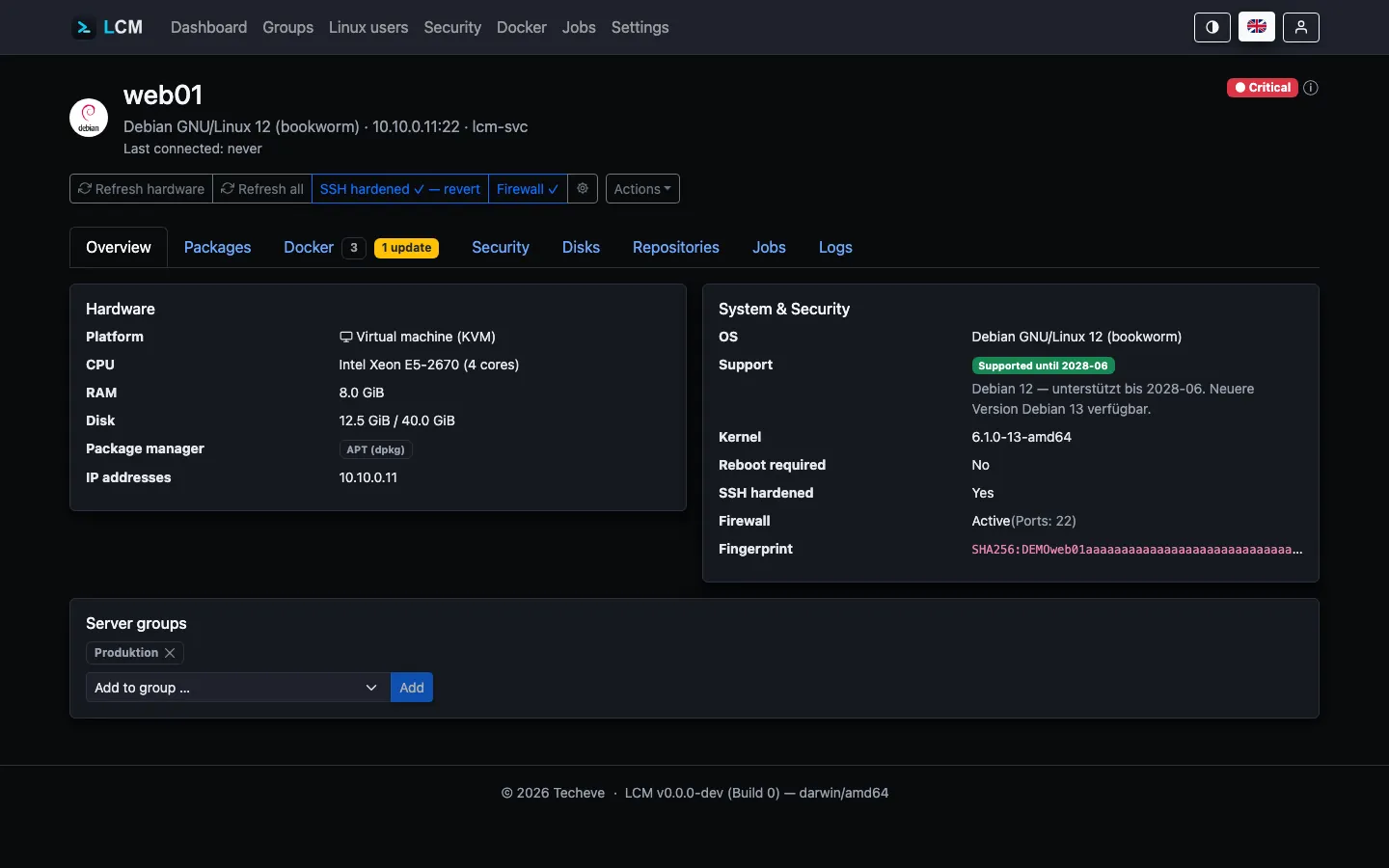
For every connected server, LCM regularly captures the current state and condenses it into a traffic-light status. Contact happens over short-lived SSH connections; the managed servers need no agent.
What gets captured
Section titled “What gets captured”-
Operating system & platform - distribution, version, kernel, virtualization (bare metal, VM, LXC), and OS support status (Ubuntu, Debian and the RHEL family: Red Hat Enterprise Linux, Rocky Linux, AlmaLinux, CentOS Stream).
-
Hardware - CPU model/cores, RAM, disk, IP addresses.
-
Key exchange - the method negotiated for the SSH connection. If it reads
mlkem…orsntrup…, the connection is quantum-safe; withcurve25519orecdh-…it is not. This is not a defect today - the connection is secure - but whoever records the traffic now could read it later with a quantum computer. The remedy is upgrading the far side to OpenSSH 9.9 or newer; LCM then negotiates ML-KEM by itself. On agent servers (MQTT instead of SSH) the field does not apply. -
Hostname - the name the system knows itself by (
hostnamectl, else/etc/hostname). It is shown next to the display name when the two differ - if a server was added by IP, this tells you which machine it is. Deliberately withouthostname -f: that does a DNS lookup and hangs exactly where the network is the problem. -
Disks/volumes - all mounted filesystems (passed-through storage volumes, not physical disks) with usage; the root volume
/stays authoritative for the traffic light and forecast. -
Reboot required - LCM detects when the server requests a reboot (e.g. after a kernel update, like Ubuntu’s login hint).
-
Packages - installed packages including available updates; separated by package manager (apt/dpkg, dnf/yum/RPM, zypper, pacman, apk) and Snap.
-
Repositories - configured package sources along with a security assessment (HTTPS, signed). The maintainable catalog of known package sources (Settings → Repositories) assigns each entry to a package manager and only offers it on matching servers; the APT cache binding (apt-cacher-ng) applies to apt systems only.
Unencrypted sources can be switched to https in one go; if
apt-get updatefails afterwards, LCM rolls the change back. The switch is reversible: LCM keeps the backup copies of the source files under/var/backups/lcm-apt-httpsand therefore still knows later which source used to be http. Reverting affects only those - a third-party source that speaks https on its own stays untouched. On servers switched before LCM 1.27 no such record exists; there LCM offers the distribution mirrors (*.debian.org,*.ubuntu.com,*.raspberrypi.org) for reverting. The confirmation shows which sources are affected before anything runs. -
Docker - containers (including Compose projects) and images, see Docker Monitoring.
-
Applications - software installed outside the package manager (AdGuard Home, Nextcloud, mailcow …) plus running services that belong to no package, see Applications.
Traffic-light status & insights
Section titled “Traffic-light status & insights”Every server has a status of 🟢 Excellent (rich green), 🟢 OK (light green), 🟡 (Warning), or 🔴 (Critical). The status derives from several signals - among them reachability, CVE findings (critical → red, high → yellow), and OS support. The ⓘ next to the status opens a popover that lists the concrete reasons (“insights”) - you never have to guess why a server isn’t green.
Red Hat: registration counts
Section titled “Red Hat: registration counts”On systems with subscription-manager LCM reads the registration state. The
reason is a fallacy that would otherwise pass unnoticed: an unregistered RHEL
gets no package sources. dnf finds nothing there - not because everything
is current, but because nobody could look. Without this finding such a server
would show “0 overdue updates” and thus look better than a well-kept one that
honestly reports three.
So LCM reports 🟡 when the system is not registered or its registration
carries no sufficient entitlement. “Disabled” counts as fine - with Simple
Content Access Red Hat no longer checks entitlements, and that is the normal
case. Rocky, AlmaLinux and CentOS do not know subscription-manager; the
finding is skipped there.
An operating system out of support (end-of-life) or less than a month before end of support sets the server to 🔴 Critical (see Security & CVE scans).
Excellent requires a spotless server: not a single known CVE (not even low ones), SSH hardening active and the firewall (ufw) active - Proxmox systems bring their own firewall and count as covered. OK allows individual low-severity CVEs as long as all updates (including security updates) are installed.
For the traffic light and alerts, CVEs are weighted: findings from Docker images do not count at all by default - they only count, at full severity, for containers marked as CVE-relevant in the Docker tab. Findings of exposed packages - web servers, proxies, SSH/mail/DNS servers, databases (list under Settings → General, plus automatically detected services listening on externally reachable ports) - count one level higher. The severity displayed in the security views remains the raw rating.
All factors, thresholds and special cases in detail: Status calculation.
Renaming a server
Section titled “Renaming a server”Server detail → Settings (gear) → section Name. The display name is freely chosen and independent of what the server calls itself on the network, but it must be unique - an already taken name is rejected with a message.
If the detected hostname differs from the display name, it is offered below the field and can be adopted with one click.
Disks, history & forecast
Section titled “Disks, history & forecast”The Disks tab of the detail page lists all mounted volumes
(passed-through filesystems, not physical disks) with device, type and a usage
bar. The root volume / is marked “System” and stays authoritative for the
dashboard traffic light, history and forecast - it is the critical factor when
it fills up.
The health check measures the root filesystem’s usage hourly (throttled) and condenses it into daily averages. The tab shows a history from this (hovering the chart reveals the percentage for each day) and extrapolates via linear regression when capacity will be exhausted (“Unlimited” beyond one year). The retention of the daily snapshots is configurable (90-365 days, Settings → General).
Monitoring further volumes
Section titled “Monitoring further volumes”Only / is monitored by default. Every other volume can be added
individually in the disks tab, with its own warning threshold in percent.
Why not all of them: a disk is allowed to be full. An archive is supposed to fill up, and a backup disk at 95 % is not a defect but working as intended. Alerting on it unasked would produce messages people dismiss - and whoever gets used to that dismisses the important ones along with them.
For a monitored volume LCM checks two things:
- Usage against the configured threshold (default 85 %; a critical threshold can be set in addition).
- Inodes against the same threshold. A filesystem can stop accepting writes while plenty of bytes are still free - typical with many small files (maildirs, session files, package caches). ZFS and Btrfs allocate inodes dynamically: they do report a number, but a computed one - a 32 GB dataset reports 65 million inodes at 1 % usage. The check therefore never fires there, which is correct: that supply cannot run out.
Independently of any setting, LCM reports a volume mounted read-only. The
kernel switches a filesystem to ro by itself after an I/O or metadata error
to prevent further damage - otherwise nobody notices until the first write
fails.
Health of the storage sets
Section titled “Health of the storage sets”A full filesystem is visible in the usage bar. What is not visible there: a
ZFS pool that has been DEGRADED for three weeks because a disk failed. Btrfs
silently counting checksum errors. A software RAID running without redundancy.
An LVM thin pool whose metadata is filling up.
None of these systems report on their own - you have to look, and in practice nobody does so regularly. LCM collects these states with every scan and shows them in the disks tab.
| Technology | Collected from | Reported when |
|---|---|---|
| ZFS | zpool list, zpool status | pool not ONLINE, read/write/checksum errors |
| Btrfs | btrfs device stats, filesystem show | counted device errors, missing device in the set |
| Software RAID | /proc/mdstat | set running without the intended redundancy ([U_]) |
| LVM thin | lvs | data or metadata above 80 %, critical from 95 % |
Collection is read-only. zpool and /proc/mdstat can be read without
special privileges; btrfs device stats and lvs refuse the service user -
for those the scan runs via sudo. In restricted mode (no general sudo)
Btrfs and LVM thin report “unknown” - deliberately no state, because a false
healthy would be worse than not knowing. If the technology is absent on a
server - the normal case - no entry and no work is created.
Unlike per-volume usage this part cannot be switched off: it costs nothing,
and a degraded pool is not a matter of taste.
A fixed defect disappears on the next scan by itself: the state is collected afresh every run, not carried forward. If a set is removed or a pool exported, no entry from yesterday is left behind either.
Offline marker
Section titled “Offline marker”A server is marked Offline as soon as it was unreachable on two consecutive contact attempts - on the dashboard as well as in the server detail view.
Why only on the second: a single failure is everyday business (a lost packet, a reboot in progress, a brief network hiccup) and says nothing yet. Only the repetition separates “not reached right now” from “is offline”. Every successful contact resets the counter - “consecutive” means consecutive.
Every reachability contact counts: the health ping (every 15 minutes by default), refresh runs and rule executions. A reboot triggered by LCM itself deliberately does not count - the server is expected to be away briefly, which is not a failed check. If it does not come back, the next health pings count it anyway.
Unreachability non-critical
Section titled “Unreachability non-critical”By default an unreachable server is immediately 🔴 Critical. For servers that are offline by design at times (branch offices, roaming devices) this can be changed per server under Settings → Availability:
- When Unreachability non-critical is enabled, an offline server does not become critical immediately. It keeps its last known status and is only greyed out on the dashboard (still clickable).
- Only after the grace period until critical (days, default 28, configurable 1-365) of continuous unreachability does it turn red for being unreachable.
Maintenance
Section titled “Maintenance”“Unreachability non-critical” softens the verdict on a server that should be reachable. Maintenance says something different: that right now it should not be.
The switch under Settings → Maintenance takes a server out of service for a while:
- no scheduled runs (health check, system sync, updates, baseline rules),
- no early warning and no CVE scan - its package inventory is frozen, so any finding would be a statement about how things looked back then,
- no alerts.
The server stays registered and visible; the list and detail view carry a yellow Maintenance marker with the date. This is meant for systems that are off on purpose: a powered-down test environment, a device being rebuilt, a machine whose resources are needed elsewhere for now.
Switching it on and off is recorded in the audit log
(server.maintenance.start / server.maintenance.end): taking a server’s
monitoring offline should be traceable.
Baseline schedules (System group)
Section titled “Baseline schedules (System group)”Every installation has a protected System group with two non-deletable schedules that run on all servers:
| Schedule | Default | Content |
|---|---|---|
| Health check | every 15 min | Check reachability; enforce baseline rules and measure storage while doing so |
| System sync | daily 04:00 | Sync hardware & Linux users, refresh the package list, run the central Docker check |
When two schedules hit the same server
Section titled “When two schedules hit the same server”At most one job runs on a server at a time - two concurrent accesses to the
same package manager would be a system conflict. When a schedule hits a busy
server, its run is therefore no longer discarded but queued: it shows up as
pending in the job list and starts as soon as the running job finishes.
The order in the queue:
- Strongest group priority first. What counts is the priority of the group the rule comes from (lower = stronger; the System group deliberately has the weakest priority, so health check and sync do not push ahead of rules that carry actual intent).
- Ties go to whoever was triggered first. Two groups of equal rank stay fair and predictable among themselves.
- A running job is never preempted. Priority decides the queue, not an abort - anything else would make a half-applied update possible.
Two rules keep the queue short:
- The same rule queues only once. During a one-hour update you would otherwise end up with four health checks in a row, all checking the same thing.
- Waiting too long drops out. The limit is half the interval of the run’s
own schedule. Beyond that the next run is closer than its own start, so it
would already be outdated by the time it ran. It is closed as
blockedwith a reason - never silently swallowed.
Queued jobs can be aborted from the job list just like running ones - they release no lock, only their place in the queue.
Refresh at the push of a button
Section titled “Refresh at the push of a button”On the server detail page:
- Refresh hardware - quick hardware/package scan.
- Refresh everything - full sync including Docker inventory and live status (e.g. APT cache binding, firewall).
Package maintenance (update, clean up, remove)
Section titled “Package maintenance (update, clean up, remove)”The Packages tab on the server detail page bundles all package actions. They run as a job and work across distributions (apt, dnf/yum, zypper, pacman, apk) - LCM picks the right command automatically.
| Action | What it does | Command (apt example) |
|---|---|---|
| Upgrade all | install all available updates | apt-get -y upgrade |
| Security/bugfix only | security/bugfix updates only (where the distro has a dedicated channel; pacman/apk have none → full update) | apt-get install --only-upgrade … |
| Clean up (autoremove) | remove no-longer-needed packages / orphaned dependencies | apt-get -y autoremove |
| Version… (per package) | pick a specific installable version (downgrade allowed) | apt-get install -y --allow-downgrades name=version |
| Remove (per package) | uninstall a package specifically | apt-get -y remove name |
Clean up is the antidote to an ever-growing package set: after many
updates, old kernel meta-packages, superseded libraries and orphaned
dependencies pile up. Per package manager LCM uses the right tool - apt/dnf autoremove, zypper packages --unneeded + remove --clean-deps, pacman
orphans (pacman -Qdtq | pacman -Rns). apk already drops dependencies when
uninstalling and reports that honestly.
“Clean up (autoremove)” is also available as a scheduled group rule - so a schedule keeps the package set of entire server groups lean over time (see Automation).
Refreshing and removing snaps
Section titled “Refreshing and removing snaps”Snaps used to be a list only - the “update” column showed that one was
waiting, but installing it meant the console. The Snaps tab now offers the
same actions as the package view: refresh all (snap refresh), refresh a
single one, and remove.
Two deliberate differences to apt:
- No version picker. A snap carries revisions and a channel; a downgrade
goes through
snap revertand is a different thing from a version-pinnedapt install. A field that looks the same but does something else would mislead. snapdand the base snaps (core,core22, …) cannot be removed: they carry every other snap. LCM does not offer the button there and rejects the call server-side as well.
Removal runs without --purge - snapd takes a snapshot of the snap’s data
first, which snap restore can bring back.
Removing old kernels
Section titled “Removing old kernels”Every kernel update puts another kernel next to the existing ones - on
purpose, because the previous one is the fallback. After a year of updates
several of them sit in /boot, and on many installations that partition is
small. A full /boot aborts the next kernel update in the middle of the
dpkg run.
The kernel card on the Overview tab therefore shows what can go and offers Remove old kernels. Always kept:
- the running kernel (
uname -r), - anything newer than it - that is what the next reboot activates,
- the next-oldest one as the fallback.
Everything below that is removed together with its companion packages (modules, headers, tools). The package names are not guessed but looked up on the target; the running kernel is excluded a second time inside the script, in case the machine rebooted since the last inventory. Currently apt systems only (Debian, Ubuntu, Proxmox) and full sudo only.
Package pins: what the cleanup must NOT touch
Section titled “Package pins: what the cleanup must NOT touch”The cleanup run is thorough - too thorough for kernels. As soon as an older
kernel has no dependency left, apt autoremove takes it away. Yet that is
exactly the fallback you need when a new kernel does not boot. Proxmox leads by
example and keeps several versions; with package pins LCM makes that
possible on every managed server.
A pin lives in the Packages tab and has two separate effects:
| Effect | Meaning | Use for |
|---|---|---|
| never remove | The package survives cleanup runs and targeted removal, but keeps receiving updates. | Kernels - keep several versions and still get security updates. |
| freeze version | The installed version stays put, no more updates. | Applications with a delicate version binding. Dangerous for kernels - security updates stop arriving. |
A pin is either global (all servers) or for this server only; on the
target the union of both takes effect. A trailing * is a prefix pattern:
linux-image-* covers the whole kernel series. The Protect kernels button
adds exactly those patterns for the server’s package manager - deliberately as
“never remove”, not as a freeze.
Each package manager gets its own mechanism:
| Package manager | never remove | freeze version |
|---|---|---|
| apt | APT::NeverAutoRemove (/etc/apt/apt.conf.d/99lcm-package-pins) | apt-mark hold |
| dnf / yum | /etc/dnf/protected.d/lcm-package-pins.conf | versionlock (plugin installed on demand) |
| zypper | no dedicated mechanism - LCM skips the packages during the cleanup run | zypper addlock |
| pacman | HoldPkg | IgnorePkg |
| apk | not applicable (apk has no autoremove) | apk hold, if the apk version supports it |
The Apply on the server button writes the files right away; the cleanup run writes them itself before removing anything. Applying is idempotent - pins deleted in LCM also disappear on the server.
Jobs & logs
Section titled “Jobs & logs”Every action - whether scheduled or manual - runs as a job and is stored with the exact SSH console output (secrets are redacted before storage). The Jobs page offers filters (type, trigger) and hides health checks by default. A concurrency lock per server prevents overlapping jobs.